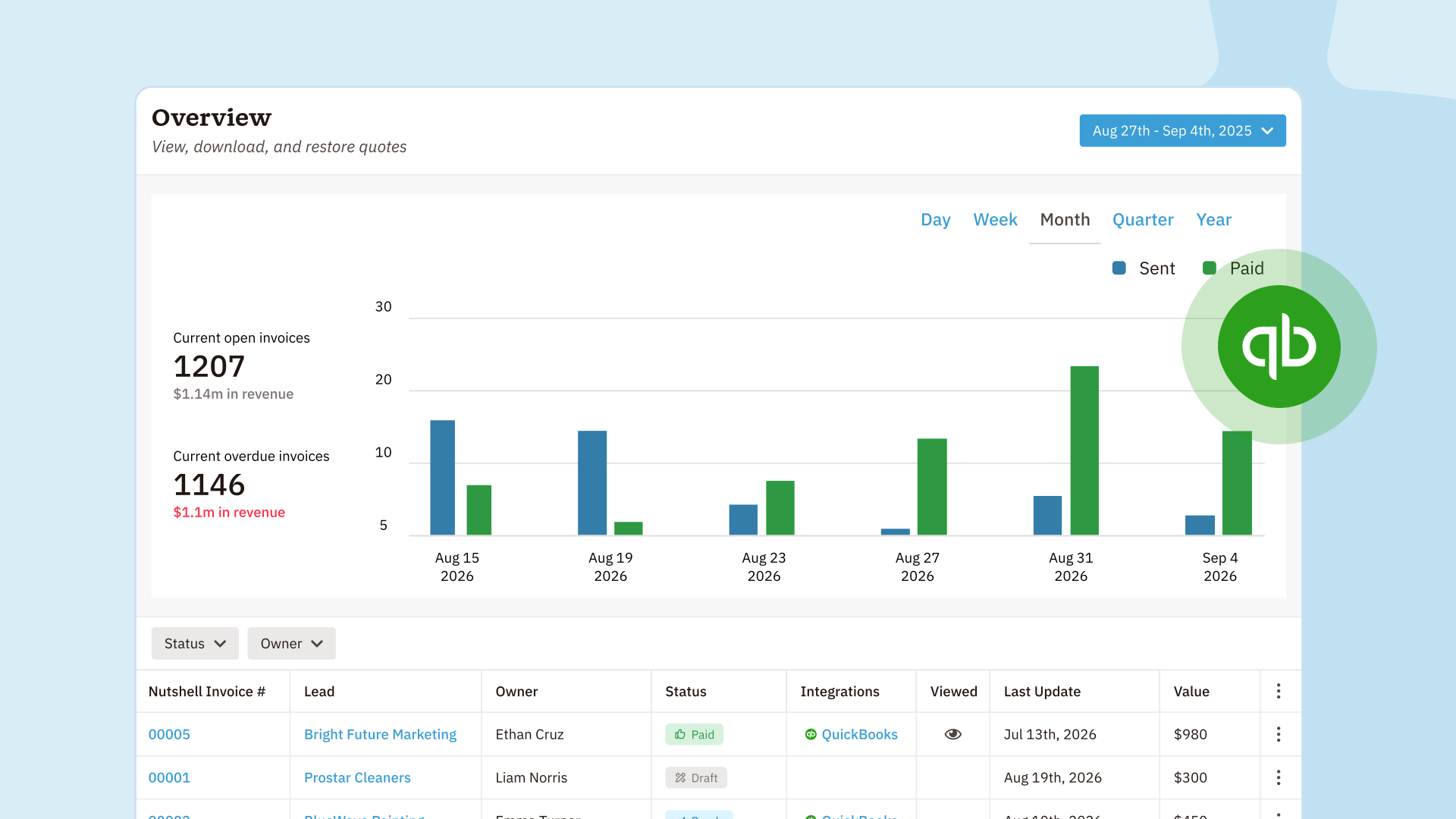
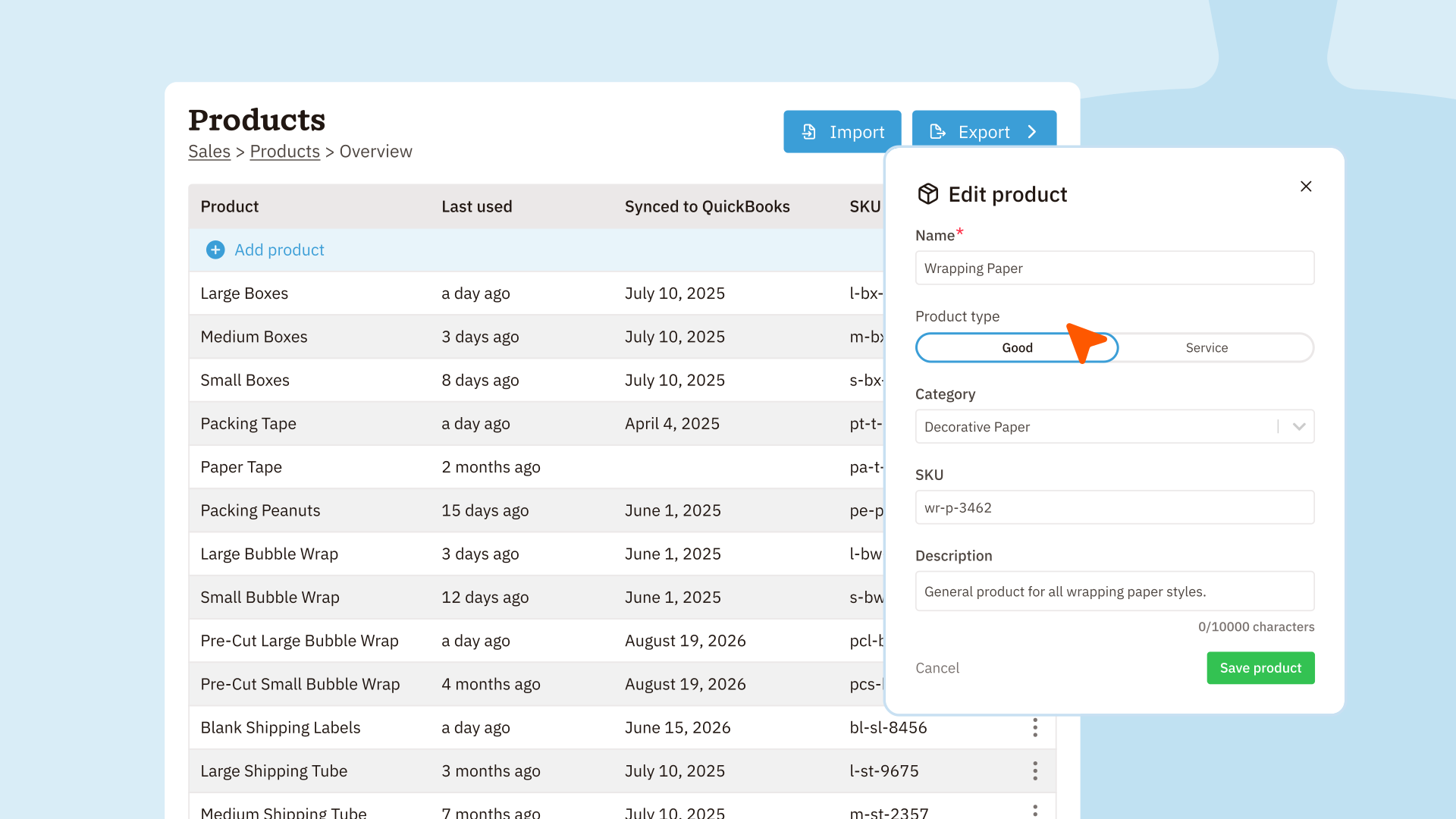
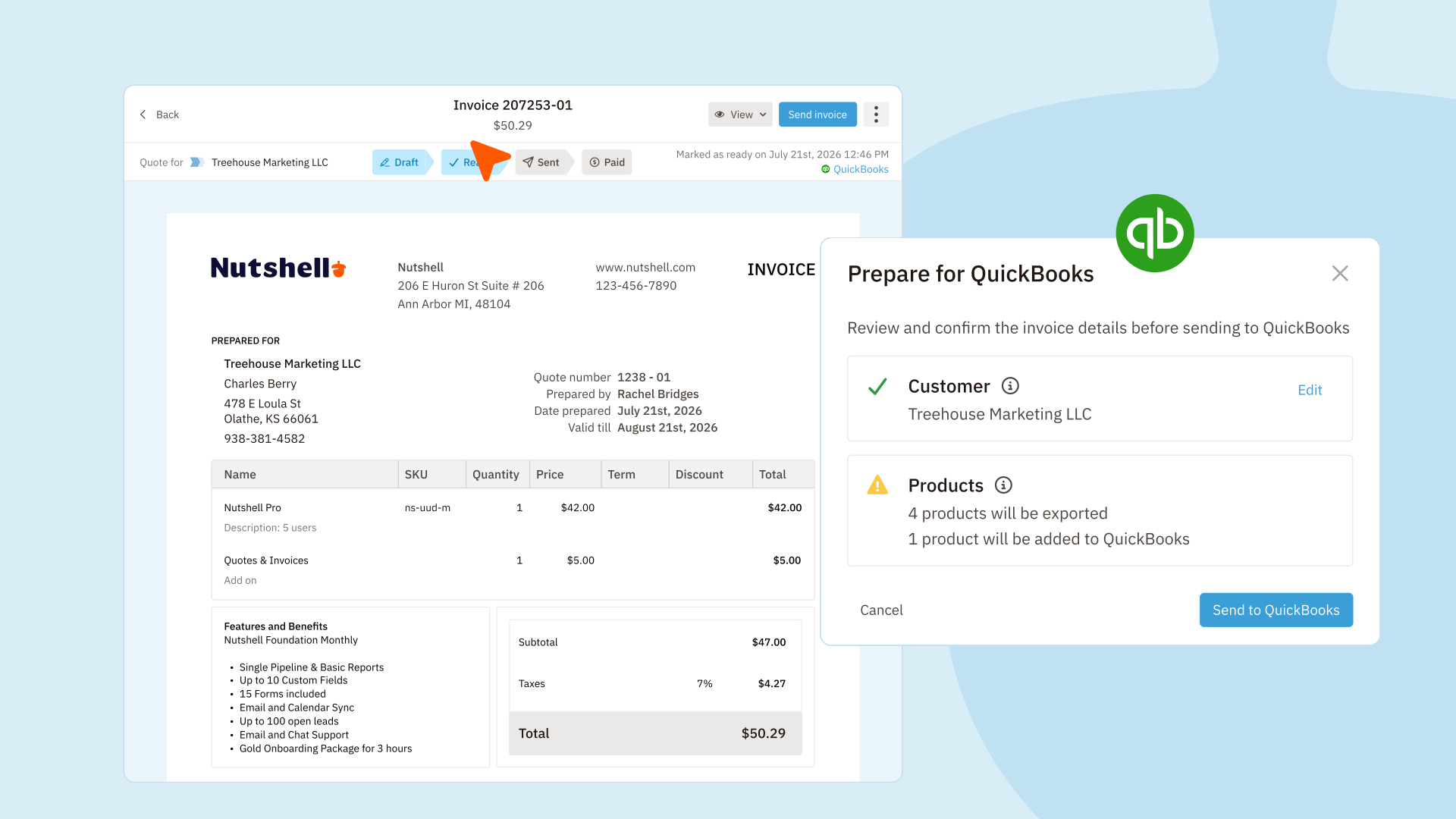
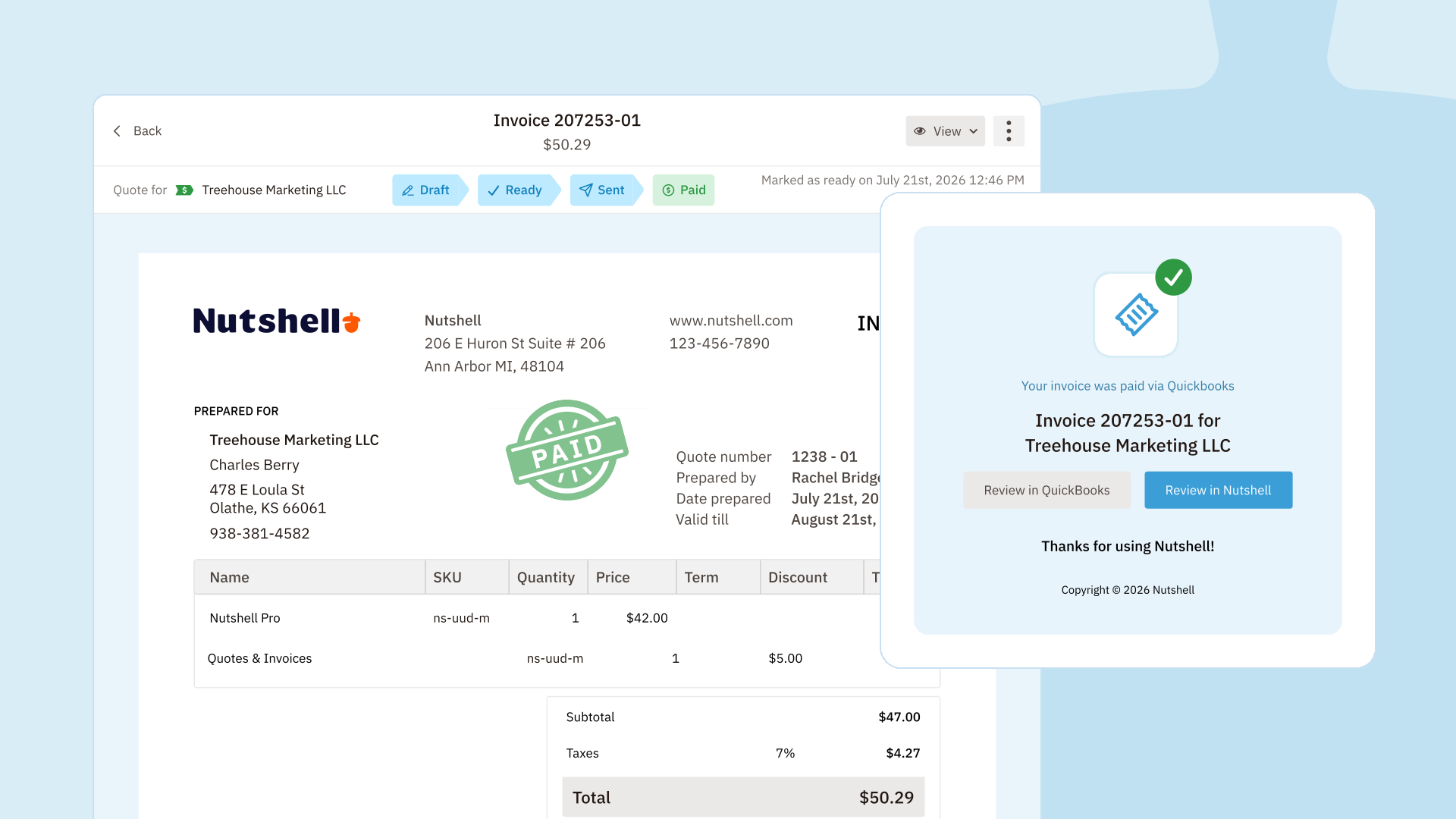
Home Blog Updated Quickbooks Online Integration Product Updates Updated Quickbooks Online Integration Written by Chris Cain VP of Product Development, Nutshell Last updated on: November 5, 2026 Quick answer: Does Nutshell have a QuickBooks Online integration? Yes. Nutshell has a built-in QuickBooks Online integration, included on every plan. It imports QuickBooks customers, sends products and invoices to QuickBooks, and updates Nutshell when a linked invoice is paid. Keep Sales and Accounting aligned with Nutshell’s QuickBooks integration The handoff from a closed deal to an accurate invoice should not mean re-entering product data, checking two systems for payment, or asking accounting for an update. We improved Nutshell’s QuickBooks Online integration so your sales and accounting teams can move products and invoices between their workflows with less manual follow-up. QuickBooks Online integration overview Nutshell’s QuickBooks Online integration imports your customers from QuickBooks and sends your products and invoices to it. When a customer pays an invoice you sent from Nutshell, the payment status comes back, so the person who sold the deal can see it was paid without asking accounting. It lives inside the same lead, product, and invoice workflows your team uses every day. This is not a full two-way sync. Nutshell and QuickBooks each stay the system of record for different things, and the integration moves four kinds of information between them. Customers: QuickBooks to Nutshell. You run the import yourself, and you can run it again whenever new customers appear in QuickBooks. Companies are matched by name and then email. People are matched by email. Products: Nutshell to QuickBooks. Admins send up to 5,000 active products per run, and items already in QuickBooks are skipped. Invoices: Nutshell to QuickBooks. Send an invoice from a lead, or have invoices created automatically when a lead is Won. Payment status: QuickBooks to Nutshell. For invoices Nutshell sent, Nutshell checks about every five minutes and marks the invoice Paid once it is paid in full. For the invoices you start in Nutshell, that closes the loop: sent from the lead, paid in QuickBooks, and visible on the lead again. The integration is included with every Nutshell plan. All you need is a QuickBooks Online account; teams that create and send Nutshell invoices also need access to Proposals & Invoices. What can I do with the QuickBooks Online integration? Move your product catalog without rebuilding it From Sales > Products, administrators can send up to 5,000 active products to QuickBooks at a time. Larger catalogs run in the background, so your team can keep working while Nutshell finishes the export and sends a notification. Reps build quotes and invoices from the product list in Nutshell. Sending that list to QuickBooks means finance is not retyping every item before the first invoice arrives. Nutshell creates products that are missing and skips existing matches rather than overwriting the information your accounting team maintains in QuickBooks. The Products page also shows when a product was connected. Product export remains a manual step, so later changes in either system do not unexpectedly replace names or prices in the other. Review invoices before they reach accounting Choose Prepare for QuickBooks from a Nutshell invoice to check its customer and products before sending. Clear status cards show which information is ready, what matches an existing QuickBooks record, and what needs attention. You can also select a different active QuickBooks customer for a single invoice without changing the customer on the Nutshell lead. Product discounts keep their net amounts, and overall invoice charges or credits are included in the QuickBooks total. If the invoice includes an overall credit, QuickBooks discounts need to be enabled first. You can also turn on Create new invoice in QuickBooks while marking a draft invoice ready. Nutshell completes the ready step first, then creates the QuickBooks invoice, with a clear retry path if QuickBooks cannot finish the request. Create the invoice when a lead is Won When QuickBooks 2.5 launched in September 2026, it added invoice automations. Turn on the Won automation and Nutshell creates the QuickBooks invoice as soon as a lead is marked Won, and you can choose to have it sent automatically. When the customer pays in full, Nutshell can also mark the lead Won. These settings are off until you turn them on, and they apply to the whole account, so agree on them with whoever runs your sales process before switching them on. Keep payment status visible to sales When a linked QuickBooks invoice is fully paid, Nutshell brings that status back to the corresponding invoice during its five-minute check. The invoice is marked Paid, the payment source is recorded, and the lead assignee receives an in-app notification and an email. That means reps can follow up with confidence without repeatedly checking QuickBooks or waiting for an accounting update. Partial payments stay unchanged until the QuickBooks invoice is fully settled. Jump straight to the accounting record The invoice overview separates the Nutshell Invoice # from its accounting connection. Once an invoice is linked, View in QuickBooks appears in the Integrations column and on the invoice’s lead, so the right record is always close at hand. So… what does this mean for me? Sales can keep working from the CRM while accounting keeps QuickBooks as its source of truth. Your team spends less time rebuilding catalogs, chasing invoice status, and wondering whether the right customer, products, and totals will be used. How do I get started? An administrator can connect QuickBooks Online from Settings > Data > Integrations. Then visit Sales > Products to send your catalog, or open a ready invoice and choose Prepare for QuickBooks. Read the complete setup and workflow guide in our support article. Keep your revenue workflow connected Not a Nutshell customer yet? Start a free 14-day trial and see what Nutshell can do for your team. BACK TO TOP Written by Chris Cain VP of Product Development, Nutshell Edited by Sam Poole Associate Content Marketer Ready to try Nutshell for Free? Full Name Work Email Thank you! Your submission has been received! Oops! Something went wrong while submitting the form. You might also like Miscellaneous Practicing Sincerity and Honesty in Your Professional Endeavors Published on: November 10, 2022 Lead Generation Marketing 5 Things Your Marketing Team Should Spend More Time On Published on: November 10, 2022 Sales 7 Sales Follow-Up Strategies You Can Try Published on: February 9, 2023 Most popular Sales Managers 8 Ways to Retain Your Top Sales Reps After Their Bonuses Published on: November 10, 2022 CRM Lead Management Sales How to Manage a Sales Pipeline for a Financial Services Company Published on: June 19, 2024 Sales Need to Get Past the Gatekeeper? Show a Little Respect. Published on: November 10, 2022 Join 30,000+ other sales and marketing professionals. Subscribe to our Sell to Win newsletter! ProductNutshell Overview Learn all about what you can do with Nutshell in 90 seconds “Finally a CRM that a sales team loves and is simple to use!” Small Business Owner CRM & SalesOur powerful and easy-to-use flagship product.MarketingEmail marketing, forms, landing pages, and more.EngagementWebchat, SMS, WhatsApp & more in your Omni-Channel Inbox.ProspectingProspect for new leads and new contacts in your CRM.Proposals & InvoicesCreate & send quotes, invoices and contracts in your CRM.AISee why Nutshell is the leading AI CRM.IntegrationsConnect to Google/Microsoft and over 5,000 Apps.ReportingCreate reports and forecasts in an instant.Mobile AppTake your CRM with you wherever you go.CRM AdvisorGet a dedicated point of contact to get the most out of Nutshell.PricingNutshell AIMarketplaceResourcesCustomersCase Studies & TestimonialsCRM for Your WorkflowCRM for Your IndustryCustomer OnboardingCustomer SupportLearn & ExploreHelp CenterBlogOn Demand WebinarsDownloadable ResourcesNutshell PartnersAbout UsCompany InfoProduct RoadmapDeveloper APISecurityMarketing ServicesContact UsContact SalesSend us your questions or book a 1-on-1 demo.Join a DemoJoin a group demo for a general overview of Nutshell.Contact SupportContact our support team via live chat in app or via email.Become a PartnerRefer businesses to Nutshell & earn commissions.Contact MarketingQuestions about our website or our marketing opportunities? CareersJoin our growing team! See current openings.